How to Update Avatar World MOD APK Without Losing Your Progress?
The moment before you update Avatar World MOD APK is always the same. You have a home you spent hours building, an avatar you have carefully designed, and a wardrobe you have collected over multiple sessions. And now you are about to install a new file over all of it.
The good news is that updating Avatar World MOD APK without losing your progress is reliable when you follow the right process. This guide covers how save data works in the MOD version, how to back it up before you update, the exact update steps, and what to do when something does go wrong.
How Save Data Works in the MOD APK Version
Before updating anything, understand where your progress lives.
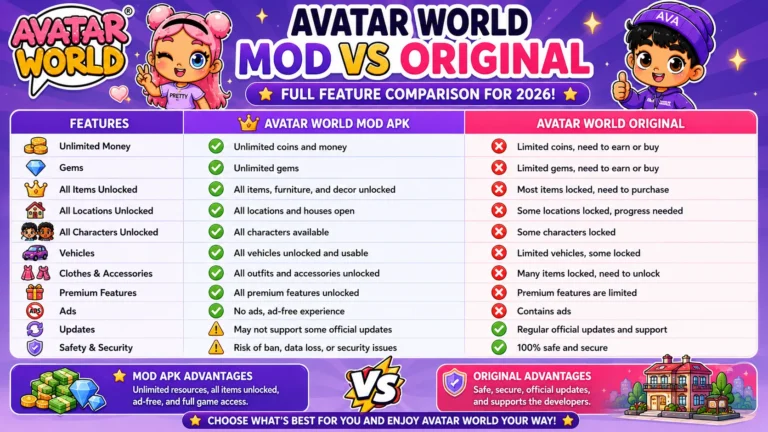
The standard Play Store version of Avatar World saves data both locally on your device and through Google account cloud sync. The Avatar World MOD APK saves data locally only. Cloud sync is limited or unavailable depending on your specific version.
Your MOD APK save data is stored in your device’s internal storage at this path: Internal Storage, then Android, then data, then the Avatar World package folder.
This folder contains everything: your avatar designs, home layouts, collected items, coin balance, and quest progress. As long as this folder is not deleted during the update, your progress is safe.
The One Rule That Prevents Data Loss
There is a single rule that determines whether your update preserves your data or wipes it.
Every APK file is signed with a unique cryptographic key. When you install a new APK over an existing one, Android checks that the signing keys match. If they match, Android treats the installation as an update and keeps your data intact. If they do not match, Android either blocks the installation or treats the new file as a completely different app.
This means if you installed your current version from this site, get the new version from this site. Do not switch between sources between updates. The consistent signing key is what keeps your progress safe.
Step 1: Back Up Your Save Data
Even with the same source, backing up before any update is good practice. It is the safety net that makes data loss impossible.
Open your file manager app. Navigate to Internal Storage, then Android, then data. Look for the folder named com.pazu.avatarworld or similar. Copy this entire folder to a separate location: your Downloads folder, an SD card if your device has one, or a cloud storage service like Google Drive.
The backup takes less than a minute. If the update goes wrong for any reason, you restore this folder, and your progress is exactly where you left it.
Some Android versions restrict access to this directory through standard file managers. You may need a file manager with elevated permissions to access it. If you cannot locate the folder, skip the backup and proceed carefully. Data loss from a same-source update is uncommon but not impossible, which is why the backup step exists.
Step 2: Download the New MOD APK Version
Go to this site and download the latest Avatar World all unlocked version.
Before downloading, note the version number listed on the download page and compare it to your currently installed version. You can find your installed version in Settings within the game. If the numbers match, you already have the latest version and no update is needed.
Step 3: Install the New File Over the Existing Version
This step is the same as your original installation, except you are not uninstalling the existing app first.
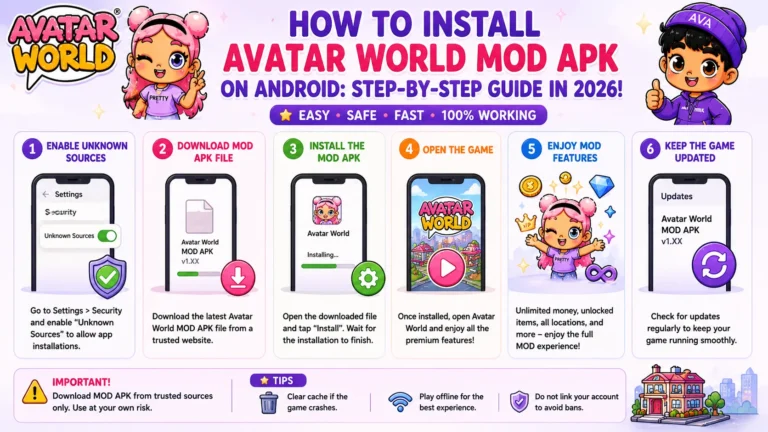
Open your file manager, go to your Downloads folder, and tap the newly downloaded Avatar World MOD APK file.
Watch for this indicator: The installation prompt that appears should reference the existing installed app rather than showing a plain Install option. On most Android versions, you will see an Update button, or the interface will indicate it is replacing an existing installation rather than installing fresh.
If you see only a standard Install button with no reference to an existing app, double-check that you have the correct file and that your file manager has unknown sources permission enabled.
Tap Install. The installation completes within one to two minutes.
Step 4: Verify Your Progress After the Update
Open Avatar World from your app drawer. When the game loads, check:
- Your avatar’s appearance and wardrobe settings are intact
- Your home layout and furniture placement are as you left them
- Your coin balance shows the unlimited MOD amount
- Previously completed quests show as completed
All four intact means the update Avatar World MOD APK process was successful, and your data is preserved.
What to Do If Progress Is Missing After Updating
Scenario 1: The Game Starts From Scratch
The game starts from scratch almost always because the update was treated as a new installation rather than an update. This happens when the APK files come from different sources, and the signing keys do not match.
If you made a backup in Step 1, restore it now. Navigate to Internal Storage, then Android, then data, find the Avatar World folder, and replace its contents with your backed-up folder. Open the game again.
If you did not make a backup and the data is gone, it cannot be recovered. The MOD version’s limited cloud save means there is no online backup. This is why Step 1 exists.
Scenario 2: Some Data Is Present, Some Is Missing
Partial data loss usually happens because a specific save format changed between versions. Core data (avatar designs, home layouts, coin balance) typically survives. Some quest progress or recently collected items may not.
Partial loss without a backup is not recoverable. For future updates, make the backup habit automatic.
When You Should Uninstall Before Updating
Most updates work fine as over-installs. There are specific situations where a clean uninstall first is the right call, accepting data loss as a consequence.
Switching APK sources. If you want to move from one APK source to this site’s version, the signing keys will not match. You need to uninstall first. Your local save data will not survive this switch.
Fixing a broken installation. If your current Avatar World MOD APK crashes, freezes, or behaves erratically, a clean uninstall followed by a fresh install of the new version is more reliable than an over-install on a corrupted base.
Major version jumps. Updating from a very old version to the current release sometimes causes data format conflicts. If you are multiple major versions behind, a clean install may be more stable than trying to update in place.
Keeping Older Versions Available
If you prefer to stay on a specific version or need to roll back after a problematic update, our Avatar World old versions page maintains an archive of previous APK files for exactly this situation.
Staying Safe During Updates
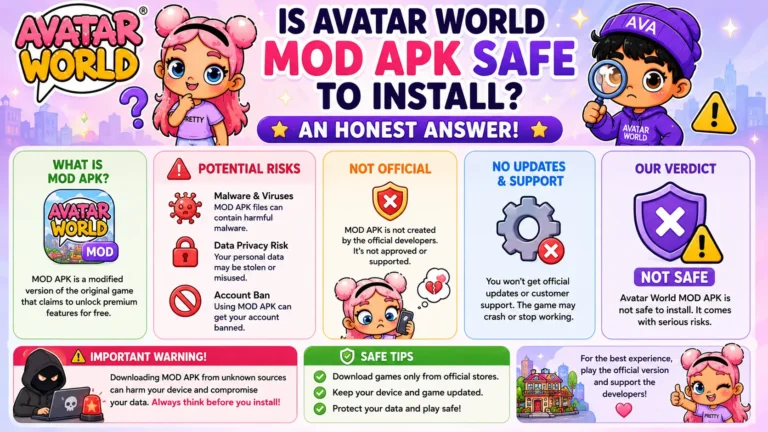
For additional verification of any new APK file before installing, our Avatar World MOD APK safety guide covers how to check file size, review permissions, and run an Android Play Protect scan as part of your update process.
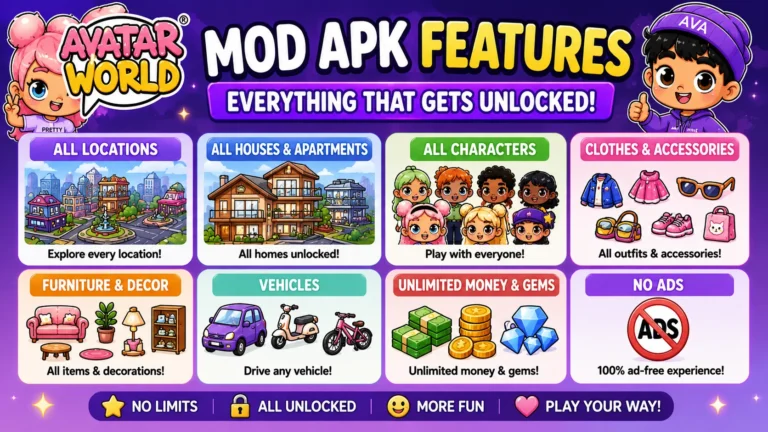
For a complete list of every feature active after a successful update, see our Avatar World MOD APK features guide.
Final Thoughts
Updating Avatar World MOD APK without data loss comes down to two habits: always back up your save folder before updating, and always use the same source for the new file that you used for the original. Same source means same signing key. The same signing key means your data survives.
The process takes under five minutes from download to verification. Do it right, and your home, your avatars, and everything you have collected will be waiting for you in the new version exactly as you left them.